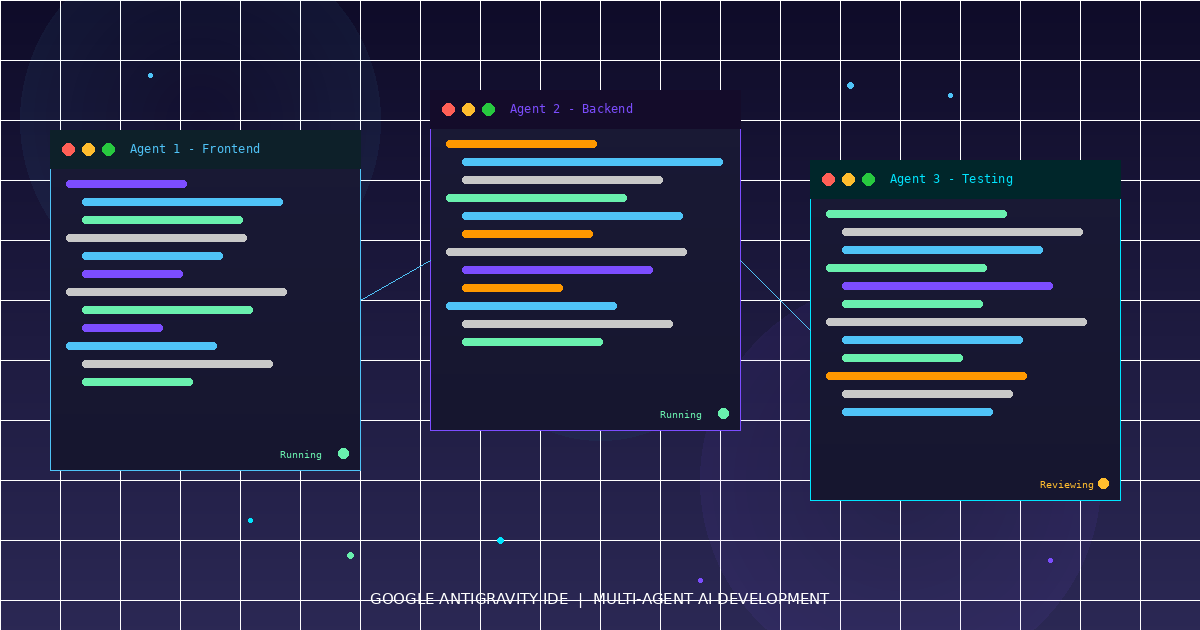
How to Use Google Antigravity IDE: AI Agents Build Apps — ContentBuffer guide

How to Use Google Antigravity IDE: AI Agents Build Apps

K
Kodetra Technologies··3 min read Beginner

Summary

Learn to set up Google Antigravity IDE and use multi-agent AI workflows to build apps without heavy coding.
What is Google Antigravity?

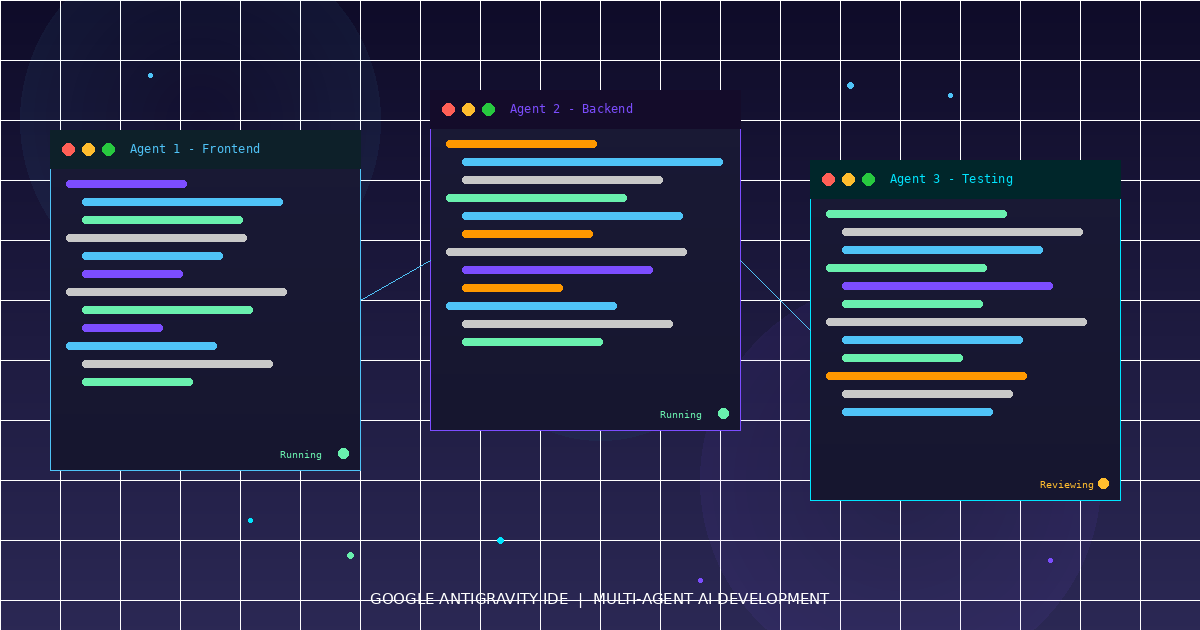
Google Antigravity is a free AI-powered code editor (IDE) where AI agents write, test, and debug code for you. Think of it as having a team of AI developers working on your project at the same time.

Who is this for? Beginners, non-coders, and developers who want to ship faster.

What you'll learn: Install Antigravity, configure agents, and build a working app using plain English instructions.

Time needed: ~15 minutes


Prerequisites

  • A personal Gmail account (Google Workspace accounts not supported yet)
  • Windows, macOS, or Linux
  • Chrome browser installed

Step 1: Download and Install

  1. Go to antigravity.google/download
  2. Select your OS (Mac .dmg / Windows .exe / Linux .deb)
  3. Run the installer
  4. Launch Antigravity

Step 2: Sign In and Initial Setup

  1. Sign in with your personal Gmail account
  2. Choose a theme (Dark/Light) — or import settings from VS Code or Cursor
  3. Configure two key settings:
SettingOptionWhat It Does
Terminal Permissions"Request Review"Agent asks before running commands
Artifact Review Policy"Pause on Major Changes"Agent pauses before big file edits

Recommended for beginners: Keep both on "Request Review" so you stay in control.


Step 3: Understand the Two Views

Antigravity has two main interfaces:

Editor View

Your standard code editor. Write code, get autocomplete suggestions, and chat with AI in the sidebar.

Manager View (Mission Control)

This is where the magic happens. You type a task in plain English, and Antigravity assigns AI agents to complete it.

How to switch: Click the toggle icon in the top-right corner of the window.


Step 4: Run Your First Mission

  1. Open Manager View
  2. Click "New Mission"
  3. Type your task in plain English

Example Input:

Build a landing page with a hero section, feature cards, 
and a contact form. Use HTML, CSS, and JavaScript.
  1. Click "Run"
  2. Watch the agents work in real time

Example Output: Antigravity creates 3 files:

index.html    — Page structure with hero, cards, contact form
styles.css    — Responsive styling
script.js     — Form validation logic

Each agent shows its progress as visual artifacts (plans, code diffs, screenshots).


Step 5: Review and Approve Changes

Agents pause at checkpoints and show you:

  • Task Plan — What the agent intends to do
  • Code Diffs — What lines will change
  • Browser Screenshots — How the result looks

Click "Approve" to continue or "Edit" to give corrections.

Example correction:

Change the hero background color to dark blue (#1a1a2e) 
and make the CTA button larger.

The agent updates only what you asked — no full rebuild.


Step 6: Use Multiple Agents in Parallel

This is Antigravity's biggest advantage. You can run up to 5 agents simultaneously.

Example Mission:

Agent 1: Build user authentication with Google OAuth
Agent 2: Write unit tests for the auth module
Agent 3: Create a dashboard page with charts
Agent 4: Set up a SQLite database for user profiles
Agent 5: Write API documentation in Markdown

Each agent works independently and reports back when done.


Step 7: Choose Your AI Model

Antigravity supports multiple AI models. Assign different models to different agents based on the task.

ModelBest For
Gemini 3.1 ProGeneral coding, planning
Gemini 3 FlashQuick edits, fast iteration
Claude Sonnet 4.6Nuanced logic, debugging
Claude Opus 4.6Complex architecture

How to change: Click the model name next to any agent in Manager View and select from the dropdown.


Step 8: Test with the Built-In Browser

Antigravity has a built-in Chrome-based browser. Agents automatically:

  1. Launch your app in the browser
  2. Take screenshots of the result
  3. Report visual bugs they find

You don't need to manually open a browser to test.


Pricing Quick Reference

PlanCostRequests/Day
Free$0~20
Pro$20/monthHigher limits
Ultra$249.99/monthMaximum access

The free tier is enough to try everything in this guide.


Common Mistakes to Avoid

  1. Vague missions — "Make a website" is too broad. Be specific about pages, features, and tech stack.
  2. Skipping reviews — Always check agent output before approving. Agents are good but not perfect.
  3. Too many agents on small tasks — One agent is fine for a single-page component. Use multiple agents for multi-feature projects.

Quick Recap

StepAction
1Download from antigravity.google/download
2Sign in with personal Gmail, configure review settings
3Learn Editor View (code) vs Manager View (agents)
4Type a mission in plain English and hit Run
5Review agent output at each checkpoint
6Run up to 5 agents in parallel for bigger projects
7Pick the right AI model per task
8Use the built-in browser for testing

Next Steps

  • Try building a todo app with authentication as your first real project
  • Explore AgentKit 2.0's 16 specialized agents for frontend, backend, and testing
  • Connect your GitHub repo directly to push code from Antigravity

Comments

Subscribe to join the conversation...

Be the first to comment

Found this useful?

Get new AI guides for builders by email. Free.